UPLOAD PHOTOS - Solution if missing ADD PHOTOS button in Media Gallery

Chrome and other browsers are now hiding flash for all websites by default. We still use flash for a couple features in your website admin.

The most important feature is uploading images into the media gallery.


If you do not see Add Photos button like the screenshot above, when you open the media gallery, then you can follow these quick steps to update your browser settings and make the button appear.

FYI: we noticed Chrome required us to redo these steps after we cleared browser cookies and history. Not sure why Chrome did that, but if you've done these steps and notice down the road that the button is missing again ... you just have to redo these steps. Thankfully it only takes about 30 seconds to fix.

The first video is for CHROME users:


The next video below is for FIREFOX browser:

se


Finally, this video below is for Safari browser:


Help, my photobucket images are not working on my website

IMPORTANT: if you have broken images on your website that came with your SaviSites website please contact us. This post is to help users who uploaded their OWN images into photobucket and then used the photobucket links to add each image into their SaviSites website.

Unfortunately Photobucket is no longer allowing users to upload images and then host them on other websites for free. And the price to upgrade for the images to turn back on is expensive. So The bad news is that you either have to pay photobucket to get all images to turn back on 'as is' ... OR you have to manually replace each image. It's frustrating that Photobucket did this, but we understand why they did. They simply couldn't afford to give this service for free anymore as their revenues shrank.

The good news...


1. Your images are not gone. They're still on photobucket if you don't have them saved on your computer. And if you're like me and forgotten which images were even being used on each page, once you're logged into Photobucket you can open the image URL in browser and it will load the image. To do this, right click on each broken image (storefront) and click "Open Image In New Tab." Then you'll be able to see the image. If you don't have saved copy already on your computer, just right click the image that opened in the new browser tab and click "Save Image As" to download the image.

2. You can host the images in your website (for free). You can upload each of the images previously on Photobucket into the IMAGE gallery in your website back-office. Once the images are uploaded into your SaviSites IMAGE gallery, just follow the steps from this video tutorial to replace each photobucket images.

It's a straightforward but let us know if you have any questions.

SaviSites support team
support@savisites.com
(850) 400-1444

Getting Started

Have you purchased a domain name?
  • If you do not already own a domain name and business email address, you can purchase it HERE  (ex: www.ABCbooks.com) 

Note: You will need to return back to our website with your domain information to complete the registration. 


If you have already purchased a domain and are ready to register, please click HERE

MUST READ If your email is Yahoo, AOL, Hotmail or Gmail

If your website uses an email address from Yahoo, AOL, Hotmail or Gmail for the "public" email address in your admin then you'll want to UPDATE this immediately. 

In April these email providers began blocking all emails that say they are sent from their servers if it did not actually come from their server. 

For example: 

if you're site currently has YourBizName@yahoo.com as the public email address, when customers placed an order they received an order confirmation email with YourBizName@yahoo.com as the FROM email address. Now these larger email providers are rejected/blocking all emails that claim to be from their servers if they did not actually originate from their servers. 

Note: this is not a SaviSites-specific issue. It’s affecting all platforms on the internet that previously allowed users to enter any email address as the from address. 

WHAT TO DO:

The good news is, there’s a very simple fix to this problem. Change your FROM address to one at your website’s domain.

Continuing the example above, you would change your public email address in your admin from yourbizname@yahoo.com to support@yourbizname.com

Where to update the email address

How do you get an email address with your domain name?

Call your domain registrar (where you purchased your domain name). They can help you setup an email address that matches your domain name for very little cost.


More related news on this topic:

Domestic shipping rates and tips

Here are some helpful tips based on popular services used for shipping books/music.

Media Mail- ONLY for shipping books and media (CD's).  Media mail is low in price, but can be slow in delivering the product. Price does vary based on zip code and weight. You estimate the price at about $2.77 with your own envelope. The website is not setup to change the shipping price based on USPS rates so if you want to use this method, you will need to estimate the price for the shipping method in your admin. I recommend using a padded envelope and purchasing tracking with it. The padded envelope helps prevent damaged products and tracking helps confirm package arrived to the destination. Tracking is an extra feature and is usually around $.90 so make sure to add that in your shipping price. The tracking number will be printed on the receipt, so SAVE YOUR RECEIPTS!

First Class- this service can be used for anything, but since we are only targeting books we will stay on that specific subject. You can use your own envelope. If you are using an envelope, one book is the maximum you can ship because of the weight restrictions (up to 13 oz.). The estimated time of delivery and price depends on the zip code but from my experience shipping all over the U.S. it takes approximately 2-3 days. Ask the clerk to give you prices for First Class vs. Media Mail. Compare the prices as well as the delivery times- Sometimes you can pay media mail price but still get a fairly fast delivery time. Don't be shy, just ask! And, don't forget to ask for tracking!!

Priority- this service has several options, but I am only going to list three of the most popular.
    Priority Mail 2-day small envelope- this service is based on your own envelope(of course you can always buy them at the Post Office for an arm and maybe a leg if you really needed to). It can hold about 3 books (4 will be very tight but can fit). It is based on zip code and weight. The estimated price for this service is about $6.95 and includes $50 insurance and tracking.
    Priority Flat Rate small envelope- this service has a FREE (can you believe something is FREE?) envelope and has a fixed price so it does not matter where it is going in the U.S. it is only $5.60. It can hold about 3 books (4 will be very tight but can fit). This option usually takes 2 days to get to the destination and also includes $50 insurance and tracking! I recommend this option if you are wanting the book/music to arrive in a short amount of time and not pay a fortune.
    Priority Flat Rate medium box- this is a lot bigger than the envelopes and obviously can hold more items. You can fit about 4-16 books in the medium size box. This also is 2 day delivery and includes $50 insurance and tracking.


Changing products that show on your homepage

When you want to change the books that are displaying on your storefront, you will need to start in 'Pages' because that is considered a page.
1) Click 'Pages'


2) Go to the active homepage (the homepage is the first page your customer will see when visiting your website)


3) Go to Layout/SEO tab to edit the product categories.


4) Once you click on the Layout/SEO, you will be able to manage the categories that show up on your
homepage. If you do not want to take advantage of all three category previews, just set the ones you do not want to 'None' in the drop down menu.


Managing Inventory

The inventory feature is easy to use and helps identify how much inventory you have in stock as well as when you need to order more.

You manage inventory on a "per product" level, and store-wide settings in Store Settings.

First, you can view inventory levels by going to the ‘Products’ drop down the main menu.


On the inventory section you can click the pencil to edit an item individually, or you can bulk edit


Each product has a section to manage stock level and low stock warning.


In Settings > Store Settings you control if customers see inventory, and if so, what they see.


INVENTORY DEFINITIONS: 

Current stock level:
How much inventory you have of the specific product. (Ex. 6)

Low stock warning:
Allows customers to see the inventory levels once it reaches the low warning amount. This will appear as “only X amount left.”  In order for this feature to work you must have Show Customer Availability set to YES in Store Settings > Inventory Control.

Show Customers Availability:
Do you want customers to know if this product is in stock?

Display As: Do not include inventory quantities:
Only show "In Stock" or "Out of Stock"

Display As: Include inventory quantities: 
Customers will be able to see how many of an item is left in stock. 

Updating Flash


You can also check to make sure you're on the latest version of Firefox. 

Here's where you can check Flash

IMPORTANT fix for 'My First Day at School'


Someone recently brought to our attention that the name of the product title below was wrong. 

My First Day of school 

should've be... 

My First Day at school

When we fixed the error it caused the eBook for this book to stop working with the incorrect spelling. 

This is prime "Back to School" marketing, so please take a second to fix the typo so the eBook works. 


How to ADD LINKS: clicking image or words to open new webpage


To create a hyperlink, linking a word or image to open a new web page, you'll first need to copy the destination URL. Open the webpage you want to link to in your browser and copy the URL (web address). 

Now go to your website admin and open the page, product or category with the item you want to link. In the text section, highlight the word or image that will link to the new web page. Then you can either right click and select insert/edit link, or click the chain icon below the "underline" icon. 

A new window will appear and you'll paste the destination URL into the "Link URL" field. 

Then click "insert" and the window will close, and you can click the green Save button.

Savi Newsletter - Jan 11th, 2012

Marketing tips and new features to kick start the New Year 

Time to take down the lights ...
Now that Christmas is over, don't forget to spend a few minutes updating your home page, template, banners and other Holiday marketing.


... And make room for Valentines Day!
In your IMAGES section you should have a folder for Valentine's Day banners
Valentines Home Page ideas
Valentines Category ideas


NEW: easily designate a new Home Page
We've made it easier to setup your Valentines home page while saving your Holiday home page
Read More


NEW: Interactive Books coming soon!
One of the first big new releases for 2012 will be our new Interactive Books. We're still in working on the prototype but our goal is to release them in the first quarter of this year. We'd love your feedback
Read More


Do you need the Teddy Bear with Personalized Book illustrations?
If we gave you a new refreshed website on the Savi2 platform, we forgot to add the graphics of the Teddy Bear holding the book showing personalized fields. You can download them from this link and add them to your website.
Get the new Teddy Bear illustrations


Here's to a happy and prosperous New Year!

SaviSites team

NEW Interactive Books coming soon!

One of the first big new releases for 2012 will be our new Interactive Books. We're still in working on the prototype but our goal is to release them in the first quarter of this year. 

We are making these a high priority because of the sales potential we believe they will bring your online business. Let your customers become your best sales people by giving them something fun and interactive to share with their friends. 

New features we're trying to include:
- The book will load with sample data, but customer can update fields and preview their own story
- Menu link to view all interactive stories available and switch titles
- Adding a "Buy Now" button on the window
- Adding "Share" features so customer can share their demo socially
- Link to "Create Your Own" if book is opened from a shared link
- Compatibility on all mobile and tablet devices
- Links back to your website so when people share their marketing your business
- Countdown for how long a shared demo will remain active
- If shared book expires, the link will load with sample text and prompt "customize this story"
- Adding "share an online version with friends" link for each product ordered on Thank You page
- Adding "share an online version with friends" link for each product ordered in confirmation email

We will be extensively measuring the traffic and testing different ideas to find which produce the best results. Below are some of the current ideas we plan to test.
- Whether to show full stories or partial stories
- How long to keep a shared demo active (to encourage ordering physical copy)
- Which text and buttons get the highest clicks
- What layouts get the highest "Buy Now" conversions

Stay tuned!!!

How to make a page HOME PAGE

With SaviSites you can easily make any of your pages the Home Page, which allows you to create and save multiple home pages - each with it's own banners, text descriptions, category previews and featured products column.

This means you can swap from one seasonal home page to the next in seconds. It also makes switching between different test layouts a snap.

How to designate a Home Page:
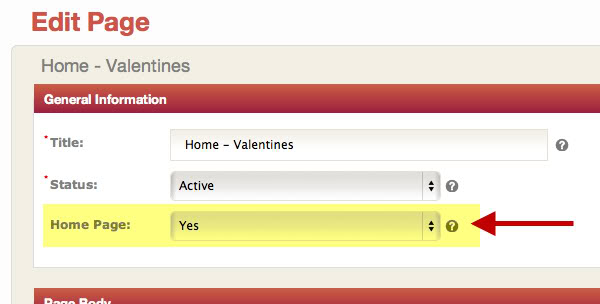
1. Go to Pages table (the checkmark shows the current home page)
2. Open the new page you want to designate
3. Change Home Page to YES
4. SAVE the page


Create-A-Book Teddy Bear Banners

Here are the 4 banners with the Create-A-Book teddy bear holding a book


Google Plus - how to add to your website

You can now add the Google Plus button to the bar across the top of your website, as well as add the button below the title of any individual page.

1. Go to Settings
2. Click "Google Webmaster Tools"
3. Change "Google Plus" to "YES"

If you also want to manually add the button to a specific page...

1. Follow steps above
2. Open the specific page in your admin
3. Click the HTML button in the description box
4. Paste "{google_plus}" in the top left corner (do not include quotations)
5. Hit UPDATE to close the HTML window and then SAVE the page.

This is how it will appear under the title:


Place website in "Maintenance Mode"

If you need to disable your website to make further changes, wait for inventory re-orders, etc... you can now take your store "offline" to disable customers from placing a purchase, while giving customers a reason for this status.

Maintenance mode removes the "buy now" buttons from the products and places a customizable notification at the top of your storefront website.

The reason we made this keep your website online but unable to place orders, instead of showing a single page with a "down for maintenance" message, is because it's better for the search engines. You do not want them to think you've disappeared and they drop you from the search results.

IMPORTANT - we do not recommend using this frequently, as shoppers in general will lose patience and shop elsewhere if they're always getting this message when they come to your website.

How to use Maintenance Mode:

1. Go to SETTINGS
2. Select "Store Settings"
3. Change "Site Active" to "Maintenance Mode"
4. Input custom message that appears at the top of your website
5. Save Changes

Now posting ALL updates to our social feeds (Big and Small)

Every week we're adding new features and updates that do not make it into our newsletters, but now we're posting real time updates to our social feeds.

Both feeds have the same information so choose the platform you use the most. We highly recommend choosing to follow at least one.

Choose one now and see what's new!

Facebook.com/savisites
Twitter.com/savisites

FREE Flash graphics for your website

Christmas Flash


To use this graphic, copy the code below and paste in the HTML window of desired page.
<div style="text-align: center;">
<a href="http://www.blogger.com/holiday-gift-ideas" title="Holiday Gifts"><object data="http://www.satisfaction.com/christmas-countdown-generator/countdown1.swf?x=" height="258" type="application/x-shockwave-flash" width="580"><param name="src" value="http://www.satisfaction.com/christmas-countdown-generator/countdown1.swf?x=http://www.satisfaction.com" />

Savi Newsletter - Nov 30th, 2011

Wow, what an incredible holiday season this has been! With Christmas around the corner, I want to share some new features you can use right now to boost your sales in the last few innings of 2011.

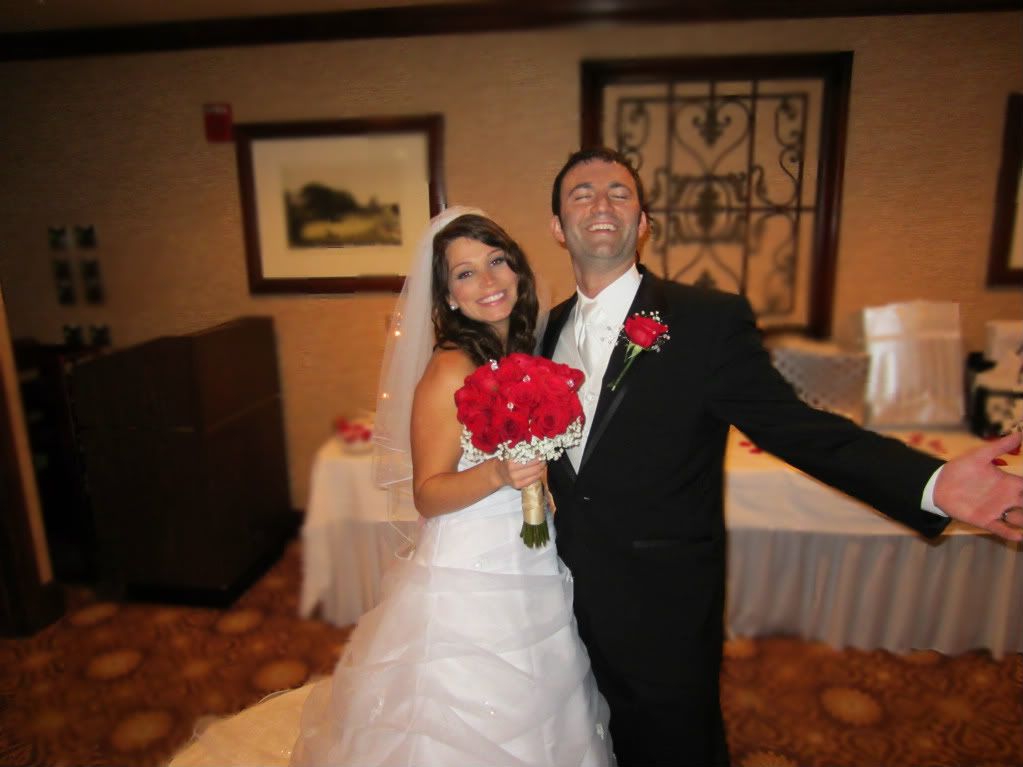
But first... to those accustomed to me answering calls and emails at all hours, who ask if I ever sleep or leave my desk,  I'm happy to report I unplugged long enough to marry my sweetheart on Nov 19th. I got a little backed up on emails while I was off the grid, my apologies. We're back to full throttle.

Whooohoo!
(more pix here)

Now back to those new features I mentioned...

We've probably uploaded a jillion changes since August, but most of those are small usability improvements that wouldn't make for an exciting newsletter. Here's a few of the important ones.

PayPal IPN: (this is huge) 
If you use PayPal on your website, stop what you're doing and CLICK HERE to learn how this helps you and how to enable it. This is hands down the most important update in this newsletter.

NEW ADMIN login:
If you're using http://beta.savistores.com to login to your admin, drop the 'beta' and go to http://savistores.com. We finally completed our Alpha/Beta/Live deployment servers for new feature testing. So from next Monday on the "beta" URL will have features that are not fully tested.

NEW Christmas Template: (see example)
We know, it would have been better to have this new design a little sooner. It was our goal too, but there were higher priority features and bug fixes that kept pushing it back. On the bright side it gives you another reason to send one more announcement to your customers before the years over. This template can be found in your Savi2 admin, under Design Settings.

NEW Mini-Cart
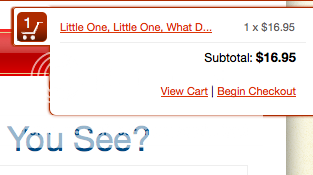
When a customer adds an item to your cart, our new mini-cart slider will open to confirm the item was successfully added while showing customers where to find the cart/checkout buttons. You can also hover over the cart icon anytime and it will slide open.

Mini-Cart

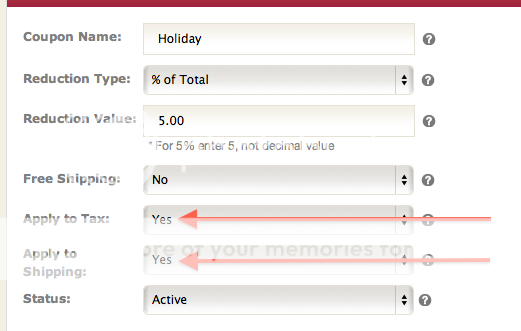
Coupon can now choose if applies to Tax and/or Shipping.
We've had some people ask for the Coupon Discount to only apply to the sub-total, and others ask for the discount to apply towards Tax and Shipping if the coupon value exceeded the sub-total. To satisfy both sides, you now have the choice on a per coupon basis. All coupons apply to Sub-Total, so choose Yes/No for tax and for shipping.

Coupon Shipping and Tax

People will be buying Christmas gifts up until December 24th. Take a Create-A-Book or two with you to work and pass them around the office. If your co-workers are parents or Grandparents you will get orders.

Also, send an email to your past customers telling them to checkout your updated site, maybe create a coupon for a Holiday product to encourage them to visit.

Get creative, there are Create-A-Book dealers selling hundreds of orders a week so the opportunity is there for anyone with a little drive and imagination.

Go get em!
Dave Hefty
Proud Husband and SaviSites Co-Founder

Coupons - Now Choose if Tax/Shipping

You can now control if a coupon's discounted value should apply to Tax or Shipping.

It will apply to the Subtotal by default, so choosing "yes"for Tax and/or Shipping will apply the discount value if it exceeds the Subtotal amount.