When you want to change the books that are displaying on your storefront, you will need to start in 'Pages' because that is considered a page.
1) Click 'Pages'
2) Go to the active homepage (the homepage is the first page your customer will see when visiting your website)
3) Go to Layout/SEO tab to edit the product categories.
4) Once you click on the Layout/SEO, you will be able to manage the categories that show up on your
homepage. If you do not want to take advantage of all three category previews, just set the ones you do not want to 'None' in the drop down menu.
Showing posts with label Home Page. Show all posts
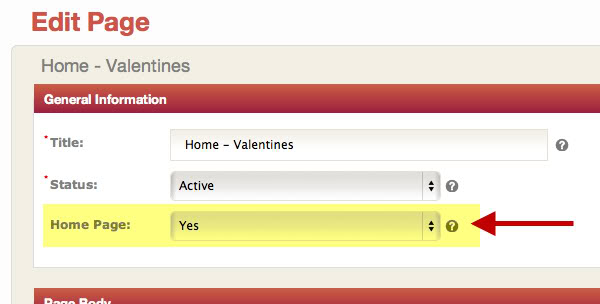
How to make a page HOME PAGE
With SaviSites you can easily make any of your pages the Home Page, which allows you to create and save multiple home pages - each with it's own banners, text descriptions, category previews and featured products column.
This means you can swap from one seasonal home page to the next in seconds. It also makes switching between different test layouts a snap.
How to designate a Home Page:
1. Go to Pages table (the checkmark shows the current home page)
2. Open the new page you want to designate
3. Change Home Page to YES
4. SAVE the page
This means you can swap from one seasonal home page to the next in seconds. It also makes switching between different test layouts a snap.
How to designate a Home Page:
1. Go to Pages table (the checkmark shows the current home page)
2. Open the new page you want to designate
3. Change Home Page to YES
4. SAVE the page